Meet QualCoder!
What is QualCoder?
QualCoder is a free, open-source desktop program for qualitative data analysis. It helps you organize non-numeric data, such as interviews, documents and images, and tag meaningful passages with codes.
QualCoder began with a researcher’s own frustration. While analyzing survey data for his PhD, he relied on a free coding tool that had become hard to install and keep running, so he rebuilt the workflow from scratch in Python and shared the result with everyone. That spirit still drives the project: qualitative analysis shouldn’t depend on expensive licenses or institutional subscriptions.
QualCoder is maintained by a small team of academics working across four continents, often in their own time. Despite these constraints, the team has continued to improve the software, responding to user feedback and incorporating suggestions to make it more useful and accessible to a growing global community.
What you can do with it:
- Code many kinds of data: text, PDFs, images, audio and video.
- Write as you think: keep journals and attach memos to codes, files and coded passages.
- Organize ideas: group codes into categories in a tree, like folders.
- Analyze and report: retrieve everything tagged with a code, compare codes, and export reports.
- Use optional AI tools: search for themes and discuss your data with a large language model. These are switched off by default.
Applications
QualCoder can be used to analyze a wide range of qualitative data files and combine them within the same research project. For example, students can import PDF files such as journal articles, policy documents, reports, or case studies and code them to identify key themes and concepts; audio recordings of interviews or focus groups can be transcribed and coded to explore participants’ experiences, opinions, and perceptions; text files such as open-ended survey responses, interview transcripts, field notes, or meeting notes can be organized into categories and themes; web-based or social-media text can be analyzed to compare public perspectives and discussions; and images or other visual materials such as photographs, screenshots, or field observations can be coded alongside textual data. These different file types can also be combined and compared, allowing students to examine, for example, whether themes identified in policy documents are also reflected in interviews, survey responses, or public discussions.
Good to know:
- It runs on Windows, macOS and Linux, and works offline.
- It is designed for one person at a time. Teams take turns on a project or merge copies later (see Working in a team).
- It aims to follow the REFI-QDA exchange standard, so projects can move to and from tools such as NVivo, ATLAS.ti and MAXQDA, with some limits.
- It is licensed under the LGPL v3. If you use it in coursework or research, cite it (the citation is on the QualCoder website).
The simplest route to install the software is to follow the instructions on the setup page . For updated instructions from QualCoder themselves, download the ready-made installer from the releases page. Choose the one appropriate for your laptop.
| System | What to download | What to expect on first launch |
|---|---|---|
| Windows | The Windows installer (.exe) | A SmartScreen warning, because the app is not signed. Click More info, then Run anyway. |
| macOS | The .dmg file | A Gatekeeper warning. Allow the app under System Settings > Privacy & Security. |
| Linux (Debian/Ubuntu) | The Linux executable, or run from source | Usually no warning. |
Optional extras (which won’t be covered during this workshop)
- VLC media player is needed to code audio and video
- ffmpeg lets QualCoder draw audio waveforms.
Launching Qualcoder
After installation is completed, to open QualCoder:
macOS: Open QualCoder from your Applications folder or use Spotlight Search (⌘ + Space) to find and launch it.
Windows: Double-click the QualCoder shortcut on your desktop or search for QualCoder in the Start Menu.
Keep the Terminal/Shell Window Open While Using QualCoder
Windows users may see a shell/terminal window pop up, which upon closing, will also stop the running process (for example, the server or the app’s background service) and quit QualCoder. Leave this window open, or minimize it, for as long as you’re using the tool. If you close it by mistake, relaunch the application to start it again.
Basic Preferences/Settings
We’ll start by adjusting a few settings. These are program-wide settings, so they apply to every project you open.
Open the main menu and choose QualCoder > Preferences (Mac) or Project > Settings (Windows).

Only a few settings matter for now:
Coder name: Every code you apply is stamped with your coder name. This matters later if you compare coding with a collaborator. For this, choose change and rename the system default.
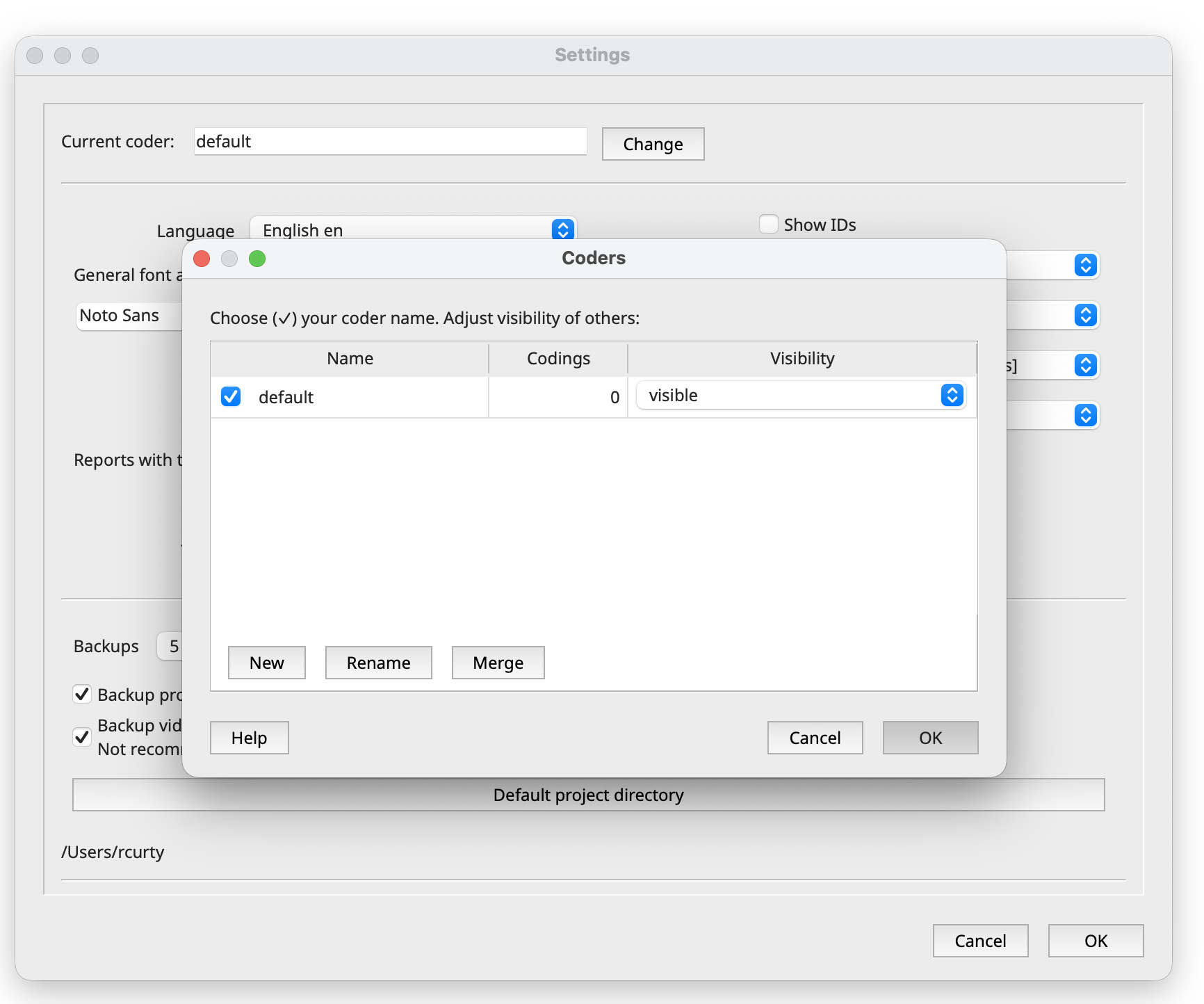
Also ensure to apply or keep the following settings so we have the same setup throughout the workshop:
Show IDs: It is a good practice to check this option so that you will see the unique ID for each file, code, cases and other project components.
Language: English is the default. French, German and Spanish are kept up to date; other languages are contributed by volunteers.
Font and display: Increase the font size if text is hard to read on a projector or small screen.
Backups: QualCoder can back up your project every hour and keep the most recent copies, named like projectname_BKP_yyyymmdd_hh.qda. Let’s leave this on! You can set a limit of how many backups are kept and delete the oldest automatically. Older versions may just keep adding them, so check your project folder now and then and delete old ones.
The backups sit next to your project, so a dead drive takes them out too. Also copy your .qda project folder somewhere else from time to time, such as cloud storage or an external drive. The backups are not compressed, so they can add up quickly with large projects.
Applying these changes, your settings and preferences should look like:

As you may notice, QualCoder offers several additional settings, including options for integrating AI into your project. Don’t worry about these for now—we’ll explore them later in the workshop.
Settings carry over to new projects. QualCoder saves them in a settings file in your user folder (usually a .qualcoder folder in your home directory), not inside the project. So your coder name, fonts, theme and backup options apply to every project you open or create until you change them.
Resetting your preferences therefore leaves your project data untouched!
To reset your preferences:
Quit QualCoder
Rename the preferences folder
macOS / Linux (Terminal):
mv ~/.qualcoder ~/.qualcoder_backupWindows (PowerShell):
Rename-Item "$HOME\.qualcoder" ".qualcoder_backup"
Reopen QualCoder. It will start fresh, with no recent projects and no saved coder name.
Tip: Renaming the folder instead of deleting it keeps a backup. To undo the reset, rename .qualcoder_backup back to .qualcoder. Coder names are saved inside each project’s .qda file, so a new project starts with no coders from earlier projects.