Coding Data
Coding Features
As discussed earlier, coding involves assigning a short label or tag (hereafter mostly referred to as a code) to a passage of data that expresses an idea relevant to your research question the excerpt (data segment). Codes may contain sub-codes, are then be grouped into categories, which may eventually develop into broader themes, which usually will determine the analysis report structure.
Using our project topic as an example, we show excerpts that can be coded to capture specific ideas in participants’ responses, categories that group related codes and potential subcodes, and themes that reflect broader patterns across the data:
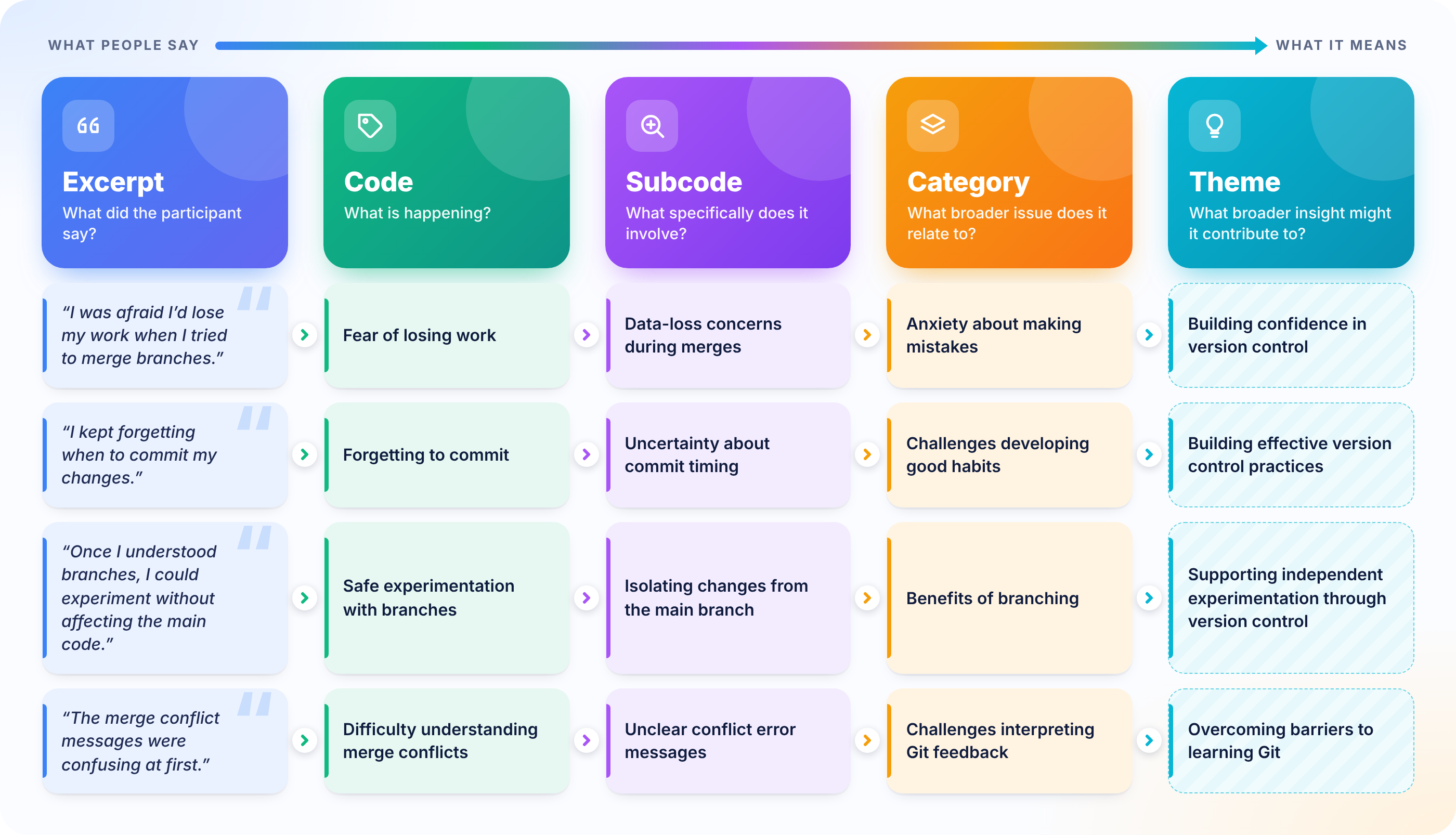
Codes are the foundation for every level above them, so it’s worth deciding early how you’ll create them. As covered earlier, codes can be planned in advance from theory (deductive), emerge as you read the data (inductive), or come from a mix of both. In this workshop, we’ll start with a predefined codebook.
What is a Codebook?
As we start assigning codes to excerpts we start developing what it is called a codebook. In qualitative research, a codebook is the shared framework that turns raw text into analyzable data. Each entry typically names a code, gives a concise definition (memo), and sets inclusion and exclusion criteria for when the code applies and when it doesn’t.
Similarly to codes, codebooks can be built deductively from theory or prior literature, inductively from patterns that emerge during close reading, or through a mix of both. Often it changes over several rounds as the team refines, merges, splits, or retires codes. That evolution is itself part of the analytic record, so keeping versions and logging changes helps document how interpretations developed.
When several researchers code the same material, the codebook keeps them aligned. It makes inter-coder agreement possible to assess, and it gives the team a concrete reference for talking through disagreements instead of relying on each person’s intuition.
Beyond the life of a single project, a well-documented codebook makes qualitative work more transparent and credible. Readers and reviewers can see how claims were grounded in the data, and other researchers can understand, critique, or adapt the analytic approach. It also makes archived qualitative data far more usable for secondary analysis, since the meaning behind each code stays clear long after the original team has moved on.
Importing a Codebook
To get started, we’ve prepared a sample codebook. Starting from a set of predefined codes is typical of a deductive approach. Later, we’ll also try an inductive approach, where we create new codes for themes that come up as we read the transcripts.
You can export a codebook from QualCoder and share it as a .qdc file (Qualitative Data Codebook). If you’re starting a project from scratch, as we did, and using a deductive approach, you can also import a list of codes from a plain-text file. Each code can include a description (memo) to clarify its meaning and intended use. Alternatively, you can create codes manually, one at a time. However, given our limited time, we’ll use the import option to get started more efficiently.
In the project example folder, locate the file Steeves_Interview_Codebook.csv and open it in a text editor or spreadsheet program.
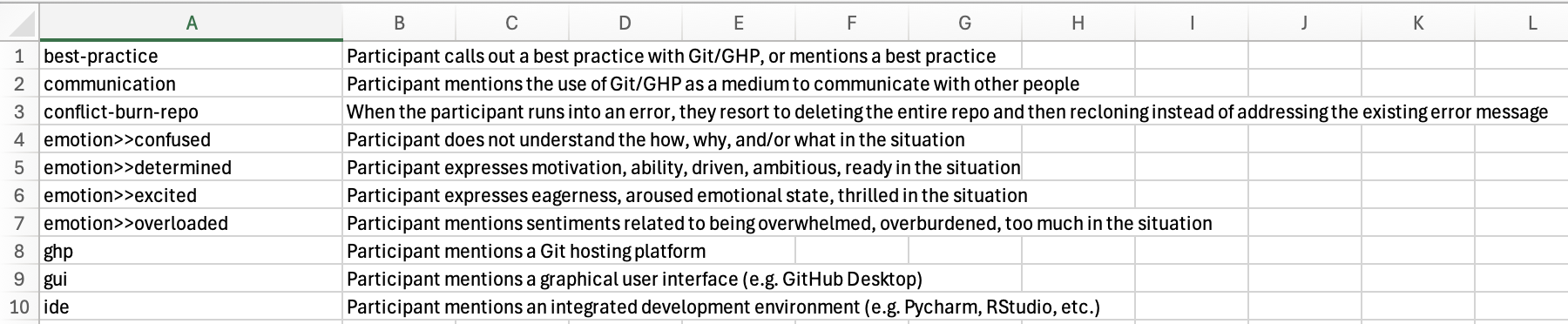
The first column contains the code names, and the second contains each code’s description, which QualCoder imports as the code’s memo. Notice the double angle brackets (>>) in some code names. They show how a code that relates to a higher-level category. For example, emotion>>confused means the code confused belongs under the category emotion.
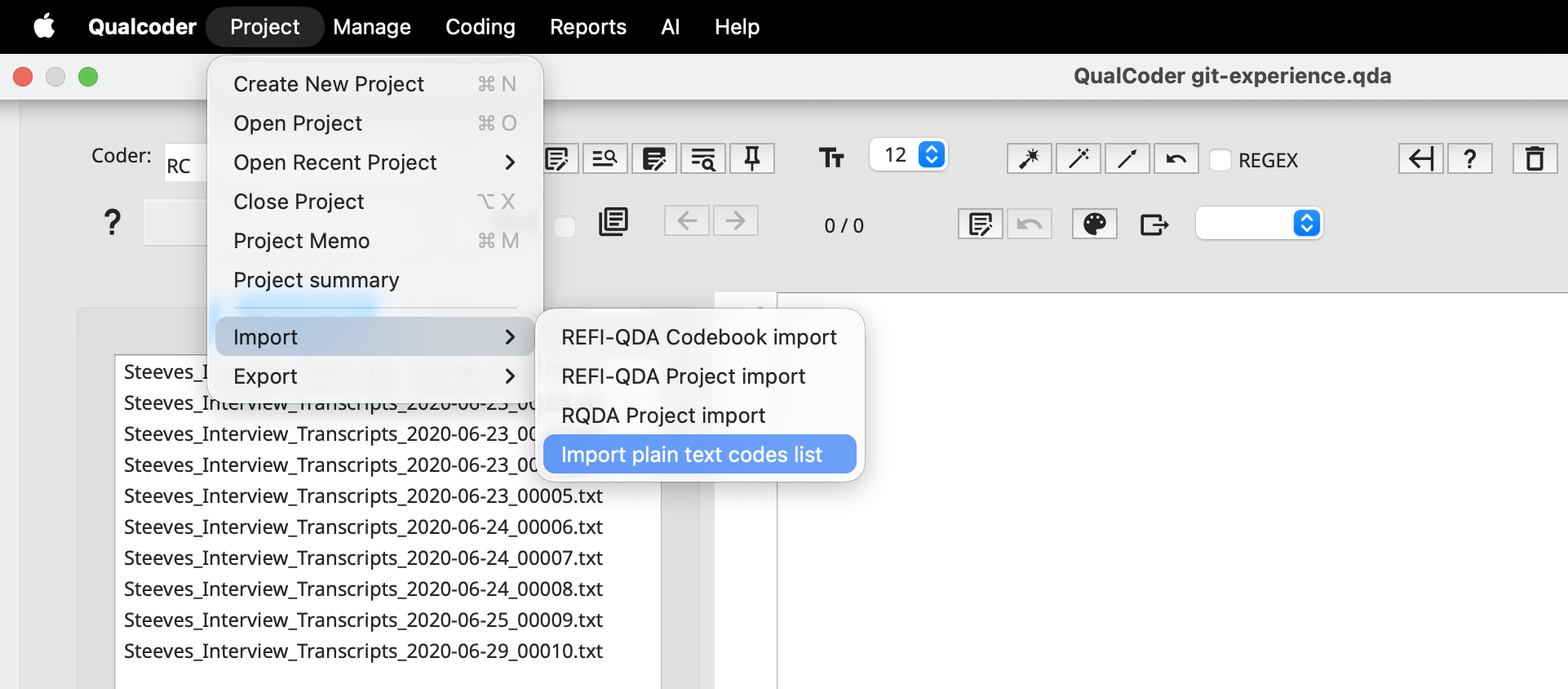
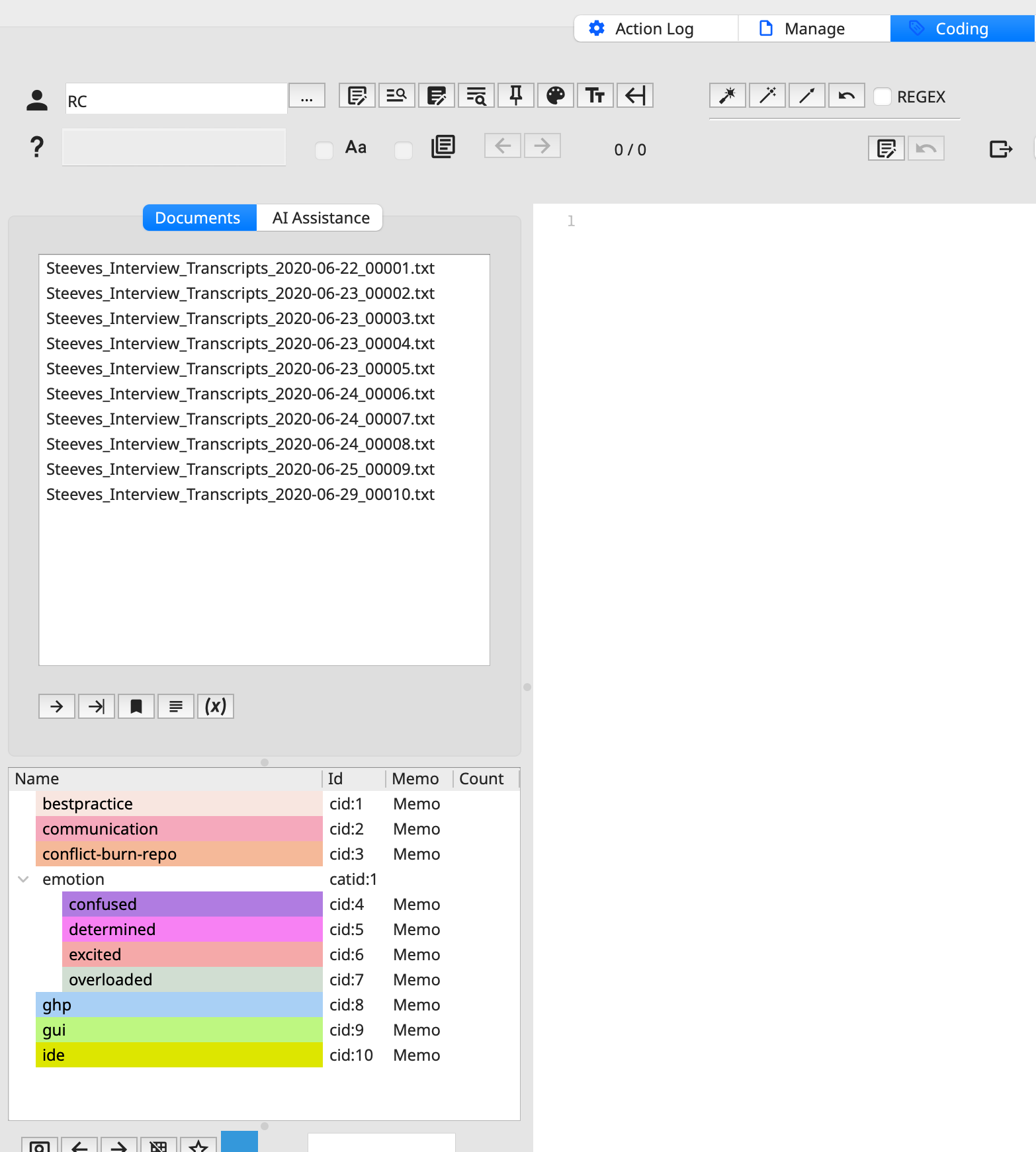
Great! You should now see your list of codes in the lower-right panel. Each code has been given a color automatically. You can change these colors under Code > Colour Scheme.
Colors give you quick visual cues, and giving related codes similar shades makes them easier to spot together. For now, we’ll leave the default colors as they are.
To add a level to the codebook hierarchy, right-click a category or code and create a subcategory or subcode beneath it or rearrange its structure using by navigating options in Modify.
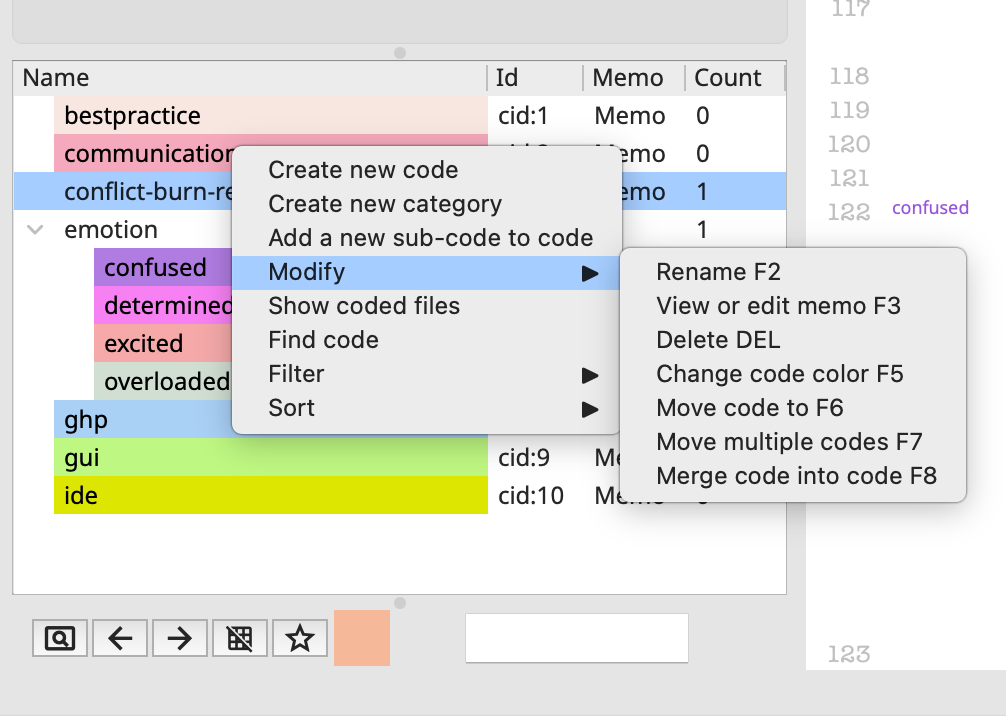
Clicking Memo opens a separate window with the code’s description. Expect to revise these descriptions as your analysis develops. As you code more transcripts, you’ll find edge cases and clarify where one code ends and another begins.
Building & Organizing the Code Tree
Codebooks are represented hierarchically as a tree: categories act like folders, codes sit inside them, and can also have subcodes. A code can belong to only one category. If an idea fits in two places, we recommend creating two similarly named codes.
While we will stick to this structure for this workshop, you can rearrange things, through right-clicking for options to move, merge, delete, sort and more.
For a bigger clean-up, open the Code Organiser under Coding. It shows your codes and categories as a diagram you can restructure: move, merge, rename and remove codes and categories, add new categories, and export the view as a PNG.
With files and our code tree in place, let’s get started with practicing some coding.
Coding Text Step by Step
Open Coding > Code text. The code tree sits on the left, your document in the center, and the file list nearby.
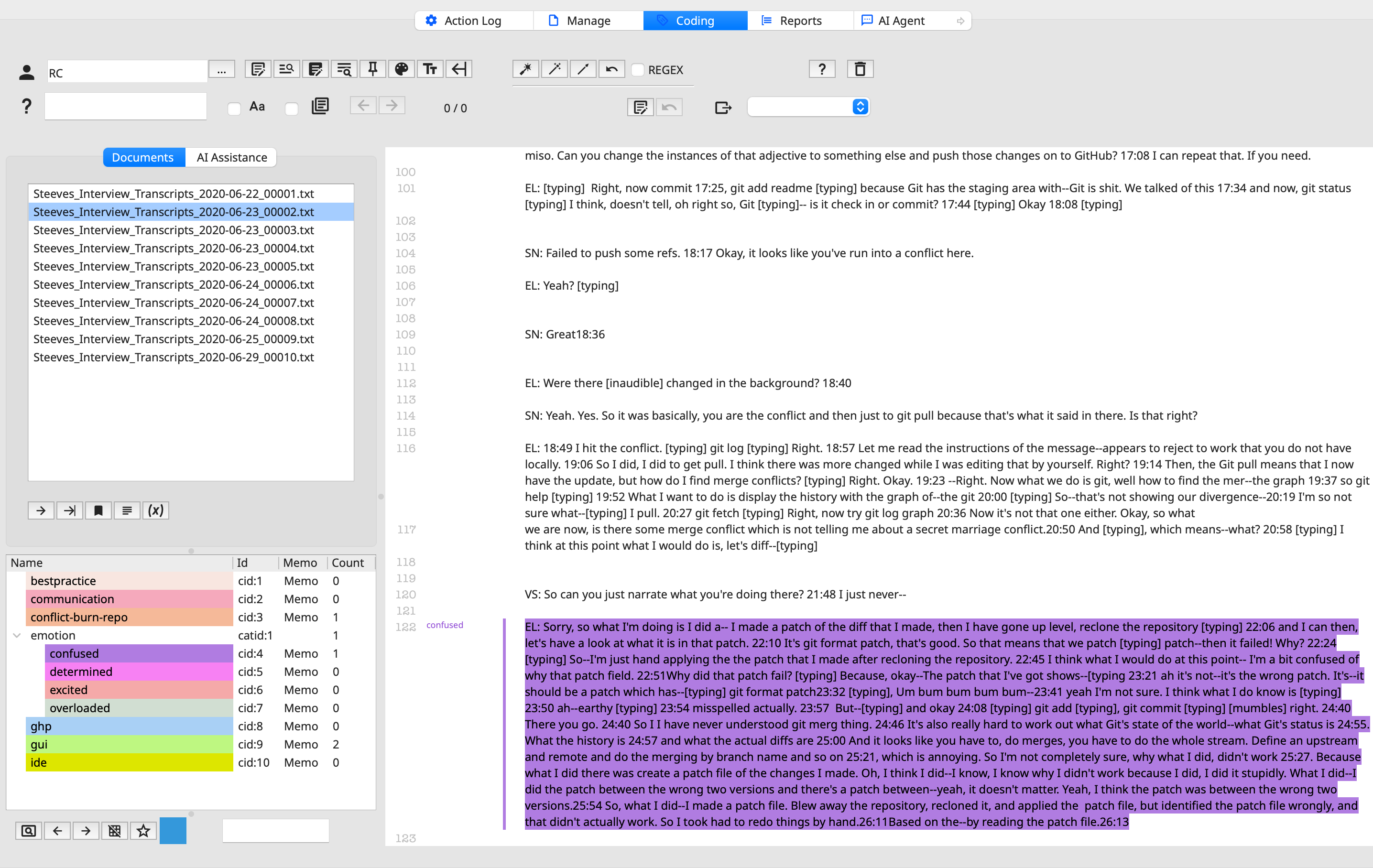
We will start by examining File 02. Since we won’t have time to examine the entire file, let’s scroll down to line 120. Great! We can now see the excerpt where the interviewer asks, “VS: So can you just narrate what you’re doing there?”
Although we don’t need to read every detail, we can see that the interviewee is describing a process while expressing uncertainty, frustration, and confusion.
Select the paragraph at line 122. Our codebook already includes the code confused under the category emotion (Emotion > Confused), so we can apply it to this excerpt by clicking the code.
Note that the selected passage takes on the code’s color, and a number appears next to the code showing how many times it has been applied. That count also adds to the total for its parent category, Emotion. The parent’s number is the total for all of its sub-codes. This lets you see how often a broad concept or idea comes up, as well as each specific variation of it.
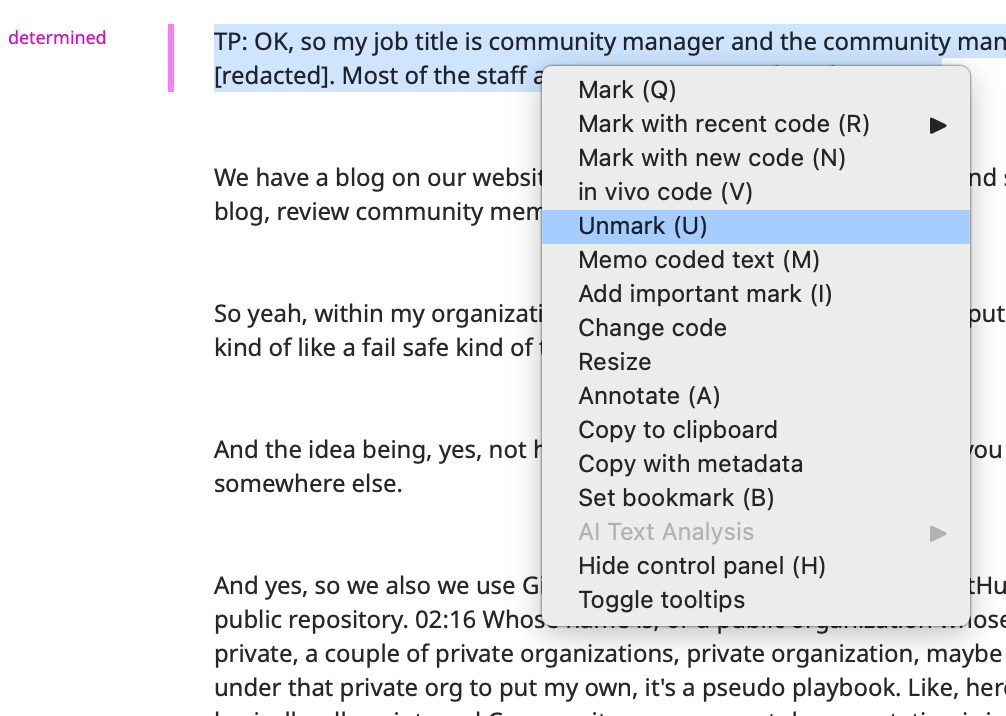
If you select a text segment by mistake or need to undo the coding, you can right-click the selection and select Unmark (U). Shortcuts after highlighting: Q reuses your most recent code, R lists recent codes, and V makes an in vivo code from the selected words.
Let’s move to File 07. Before we start, look at the code list. The number next to confused is gone, but emotion still shows 1. The code list only shows counts for the file that’s currently open, so confused has no count in file 07. Emotion still shows 1 because the code you applied in the previous file still counts toward it. In a later episode, we’ll explore reports that summarize code counts across all your files.
Don’t worry, your previous work is safe! Yhe coding you completed in the previous file has been saved. As we discussed earlier, QualCoder is set to back up your work automatically according to your preferences.
Going back to File 07, let’s look for line 71, where the interviewee starts describing their approach to editing multiple files in the repository. Skim through the passage, for this exercise we will consider it expresses confidence in the workflow, and code it as determined.
Uncoding Things
Coding mistakes are inevitable, so part of good practice is going back to remove codes that don’t fit.
You may have noticed that the excerpts also include the questions asked. Depending on the interview protocol and methodological approach, these questions may vary across interviews. After all, an interview is an interactive exchange that can evolve in response to participants’ answers. This raises an important coding consideration worth discussing.
Coding with Search Assistance
See the question mark on the left-hand side of the top bar? That allows us to search for words across files, and can be useful to identify relevant terms before we apply codes.
Let’s look for GUI, which stands for Graphic User Interface, and apply the GUI code the excerpts with the first 5 results (in order of appearance). Select “Aa” to make the search case sensitive, and navigate matches across files using the arrows.
The limits of a segment
Where should a selection begin and end? Deciding how much text to select is one of the main choices you make when coding. A few guidelines:
Select a complete thought: Start where the participant begins the idea and stop when they finish it or move on to a new topic. That might be a phrase, a sentence or a whole paragraph.
Include enough context to understand it later: Someone reading the excerpt by itself, for example in a report, should still be able to tell why it was coded. If “It was a nightmare” only makes sense with the sentence before it, select both sentences.
Leave out what doesn’t belong: Don’t add filler, the interviewer’s next question or a new topic just to fill out the excerpt. Extra text makes reports harder to read and blurs what the code means.
Overlapping is fine: A passage can have more than one code, and selections for different codes can overlap. For example, one sentence might be coded Confused while the whole paragraph is coded GUI.
Be consistent. Use the same approach across all transcripts, especially if you’re coding with other people. Some teams agree on a default unit, such as “the full answer to one question,” before they start.
In Vivo Coding
As most QDAS, QualCoder also offers the option for researchers to apply InVivo coding. In vivo coding means using the participant’s own words as the name of a code. Instead of making up a label such as Frustration, you take a short phrase straight from the transcript, such as “I just nuked the whole repo.” In vivo is Latin for “in the living,” meaning the code comes from the data itself.
In vivo coding is an inductive approach because the codes come from the transcripts, not from a predefined codebook. It’s useful when you want to:
keep participants’ voices and terms in your analysis
capture slang, jargon or vivid expressions that a generic label would lose
start exploring data before you have a clear set of themes
In vivo codes are often renamed or grouped into broader categories later. For example, “I just nuked the whole repo” might end up under the existing code conflict-burn-repo. Let’s select File 04 and look for line 131, where the interviewer mentions The Carpentries, and let’s apply an in vivo code to that, using the right-click or the shortcut (Command or Ctrl + V).
The rationale here would be to add it as in vivo for now, until they consult with the PI and review strategies.
At what point do in vivo codes need to become conceptual? Does grouping or renaming them erase the participant’s voice? Where should that decision be recorded?
You can also add codes to the code book on the fly (inductively), by selecting a segment and then Mark with New Code (N).
Adding your Reasoning with Memos
Codes show what you noticed. Memos and annotations record why. Memos are notes recording the researcher’s thoughts, interpretations, questions, or decisions during analysis.
Writing down your reasoning as you go makes your analysis easier to explain, review and share with others.
These notes become a record of how your thinking developed. They’re especially useful when you refine codes, merge or split them, or code with other people.
Based on what you know about The Carpentries, add a one sentence memo to it, also noting it is derived from In Vivo Coding.
Take a moment to explore the options provided in that window.
Auto-coding
Auto-code in QualCoder applies a code to every passage that matches text you specify, so you don’t have to select each passage by hand. You’ll find the options as buttons at the top right of the text-coding window. First select the code you want to apply, then choose an option:
Auto-code exact text codes every occurrence of a word or phrase. QualCoder asks which files to search, so you can code across several transcripts at once. Separate alternatives with
|to catch several terms with one code, for exampleGitHub Desktop|GUI. Matching is case-sensitive.Auto-code sentences codes the whole sentence that contains a text fragment, not just the fragment. You can set what counts as the end of a sentence. The default is a period followed by a space.
Auto-code between start and end marks codes everything between a start text and an end text in the current file. It’s useful for structured transcripts, such as coding everything from one interview question to the next.
Regex is a checkbox that lets you use regular expressions for more flexible matching, such as wildcards and word variations.
First or last match only is a right-click option that codes only the first or last match in each file.
Mark speakers codes each paragraph with the speaker’s name when transcripts label speakers as
[name],{name}orname:.Undo reverses recent auto-coding, but only until you close the project.
Use these features with care and keep in mind that auto-coding matches words, not meaning. Searching for “confused” won’t catch “I had no idea what was going on,” and it will catch “I wasn’t confused at all.” Treat auto-coding as a first pass, and review every coded passage before you rely on it.
Buttons at the top right can code every exact match of a word (case-sensitive; separate options with |, e.g. exam|exams), every sentence containing a fragment, or the section between two markers.
In QualCoder, auto-coding actions can only be undone while the project remains open. Once you close the project, the option to reverse these actions may no longer be available. Therefore, it is important to carefully review the results of auto-coding before closing the project. Check that the assigned codes are relevant to the selected text, accurately reflect the intended meaning, and are consistent with your coding framework. If any errors or inappropriate code assignments are identified, correct them before closing the project. Proceed with caution, as auto-coding may produce results that require manual verification to ensure the accuracy and reliability of your qualitative data analysis.
Now that we’ve mastered the basics of coding, it’s time to bring in more data and explore additional QualCoder features. In the next episode, we’ll take the next step: turning our analysis into a reports and visuals.